
PHOTOGRAPHY
How to compress your photos without losing quality.
Discover practical ways to reduce image file size and choose the right compression method for different types of pictures and everyday digital use.
PHOTOGRAPHY
Discover practical ways to reduce image file size and choose the right compression method for different types of pictures and everyday digital use.
JUMP TO SECTION
How to compress images in Adobe Lightroom
How to compress an image in Photoshop without losing quality
How file types affect image compression
What’s the difference between image compression and image resizing?
How to share compressed images online
Image compression is a way to reduce the size of an image to make it best suited to its intended use. The golden rule of file compression is: don’t compress photos or images any more than you need to. But how much is that?
With the right tools, you can compress images without losing quality, helping you to reduce image file size for websites, social media, presentations, and cloud storage while keeping them clear and usable.
"Image compression is a method of reducing the size of an image file by means of a specific algorithm. Different image file types such as JPG, TIF and PNG use different algorithms to change how image data is stored and to produce smaller-sized files (measured in bytes). When compressed the right way for the intended use, the new files can maintain acceptable image quality at reduced (or even greatly reduced) sizes.
You can compress image files online or through software such as Adobe Photoshop or Adobe Lightroom, depending on your needs — both options aim to maintain image quality while saving storage space."
File compression is your friend — especially if you tend to run out of storage space on your phone or hard drive or post lots of pictures online. There are plenty of ways you can make your images smaller without affecting the quality too much. It all starts with the golden rule of file compression: don’t compress photos or images more than you need to.
By following the steps below, you can find the right balance between file size and image quality. Then, dig a little deeper into photo compression so you’ll always know how to save the best quality image file for the occasion. By compressing images with the right settings, you reduce image file size while still keeping the photo clear and detailed, which helps you choose the best compression level for each image.
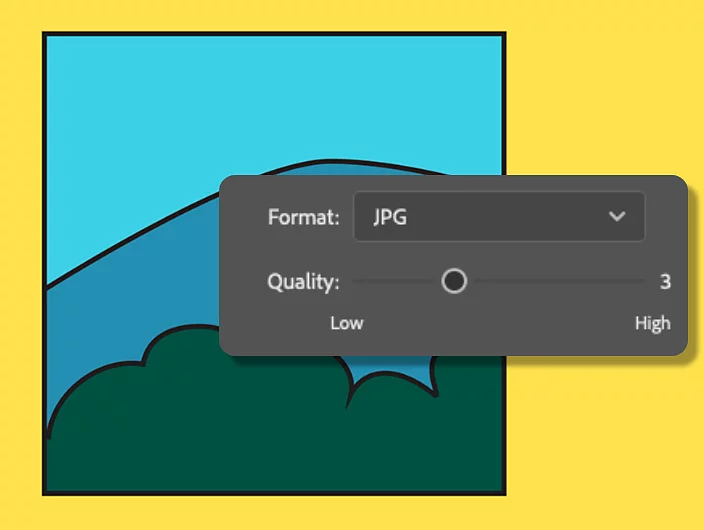
You can use any software that converts image file types as your own personal image compressor. In Lightroom, you can compress your original photos by turning them into a JPG or a TIF file. JPGs tend to work best for sharing and storing images, as they maintain good image quality while keeping file size relatively small.
Follow these steps to compress photo size in Adobe Lightroom:

Edit, organise, store and share photos from anywhere.
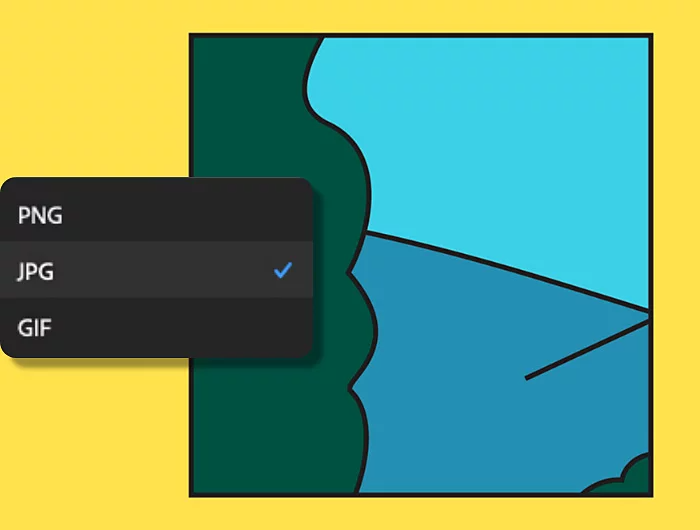
Compression works similarly in both Photoshop and Lightroom, but Photoshop offers an additional export option — the ability to save your file as a GIF. For most uses, though, you’ll get better results using the JPG image file format to reduce image file size while maintaining good visual quality.
Follow these steps to compress image size in Adobe Photoshop:

Create gorgeous images, rich graphics and incredible art.
If you’re working in Lightroom or Photoshop, file type plays an important role in how image compression works, especially when editing raw photos, the uncompressed versions captured directly by your digital camera.
Different file formats store image data in different ways, which affects file size, image quality, colour depth, and compatibility. Choosing the right file type helps you control how much compression is applied and how your images will look after saving or exporting.
Next, explore why JPG is one of the most commonly used image formats, learn about other file types like PNG, TIF, and GIF, and understand the difference between lossy and lossless compression.
A tried-and-true option, JPGs are a popular file type because they can maintain relatively good image quality at a small file size.
JPG files are widely used because they:
JPG is a lossy file format, which means that you’ll lose some image quality when you convert. But, more often than not, the changes to your image won’t even be visible to the average viewer.
It's ideal for users who need a balance between file size and visual fidelity, particularly in digital marketing, blogging, or social media applications.
Here are some common image file types that support compression:
The terms lossy and lossless describe how much information files maintain after compression.
Here’s the difference between lossy and lossless compression:
Lossy compression
Lossless compression
If you’ve ever used a ZIP file, you’re already experienced in lossless compression. With this form of compression, you get slightly reduced file sizes without losing any precious data. Lossless compression is great when every detail of your image counts, like when you’re photo editing or printing a family portrait.
Compression and resizing are similar concepts, both can make image file sizes smaller. However, they work in different ways and affect images differently.
Here’s the difference between image compression and image resizing:
Image compression
Image resizing
So, when you need to decide between compressing an image and resizing it, think ahead to what you may need that image for in the future. Compression is better for maintaining dimensions while reducing file size; resizing changes the actual pixel dimensions. And always keep a copy of your original picture, just in case.

There are many ways to show off your photos and images online, whether you’re creating a website, emailing a friend, posting to social media or saving to the cloud. Optimising your images before sharing can help improve loading times and ensure they display correctly across devices. Here are some tips to help you to discover the best compression style for your sharing needs:
Animated GIFs are a great way to tell a story quickly. It’s easy to make your own and share them in emails, messaging apps or even on your website. Just remember that while GIFs are eye-catching, they often have limited colour depth, which may affect image detail.
While it isn’t always the best solution for reducing an image’s file size, cropping can be helpful if you only need to share a small portion of your image. This is particularly true for social media posts, where image composition really matters. Cropping can also eliminate unwanted areas, drawing focus to the most important part of the visual.
If you’re ready to share your Photoshop work with the world, first convert your PSD (Photoshop Document) to JPG, one of the most universally compatible file types that also works well on the web. You can also choose PNG if you need to preserve transparency, although the file size may be larger.
Image compression isn’t just for professional designers, it’s something anyone in India can use to simplify daily digital tasks:
From school assignments and job applications to online selling and social media posting, knowing how to compress image files makes everyday digital tasks easier and more efficient.
Based on your location, we think you may prefer the United States website, where you'll get regional content, offerings, and pricing.

